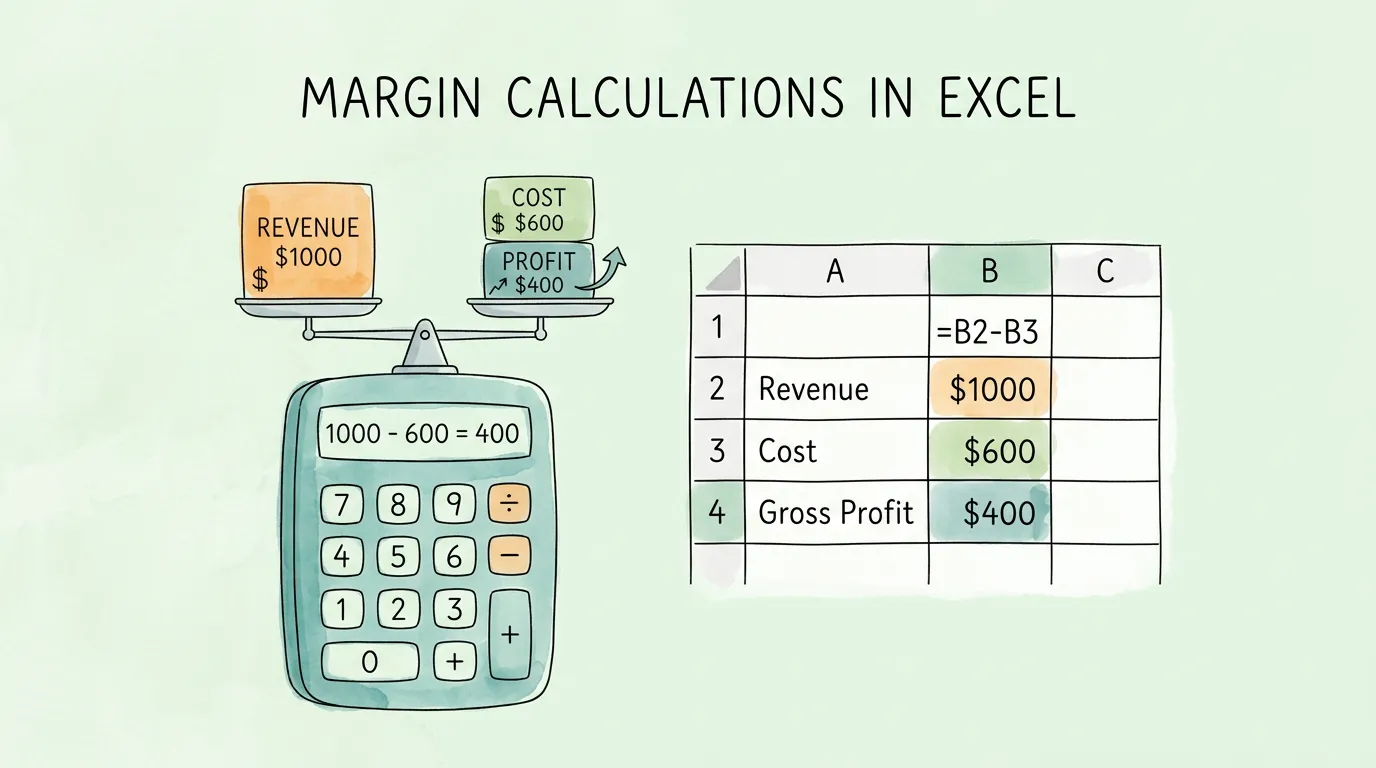
Picture this: your online store just had its best month ever. Orders are flying out the door, revenue is up 30%, and you're feeling great. Then you sit down with your numbers. After paying your supplier, shipping costs, and that new packaging you upgraded to, the profit is… barely anything. Your most popular product, the one customers rave about, is making you almost nothing on every single sale.
This is the trap that catches more small business owners than almost anything else: confusing revenue with profit, and sales volume with financial health. The fix is surprisingly simple. A handful of margin calculations in Excel can tell you in minutes which products are genuinely working for you, and which ones are just keeping you busy.
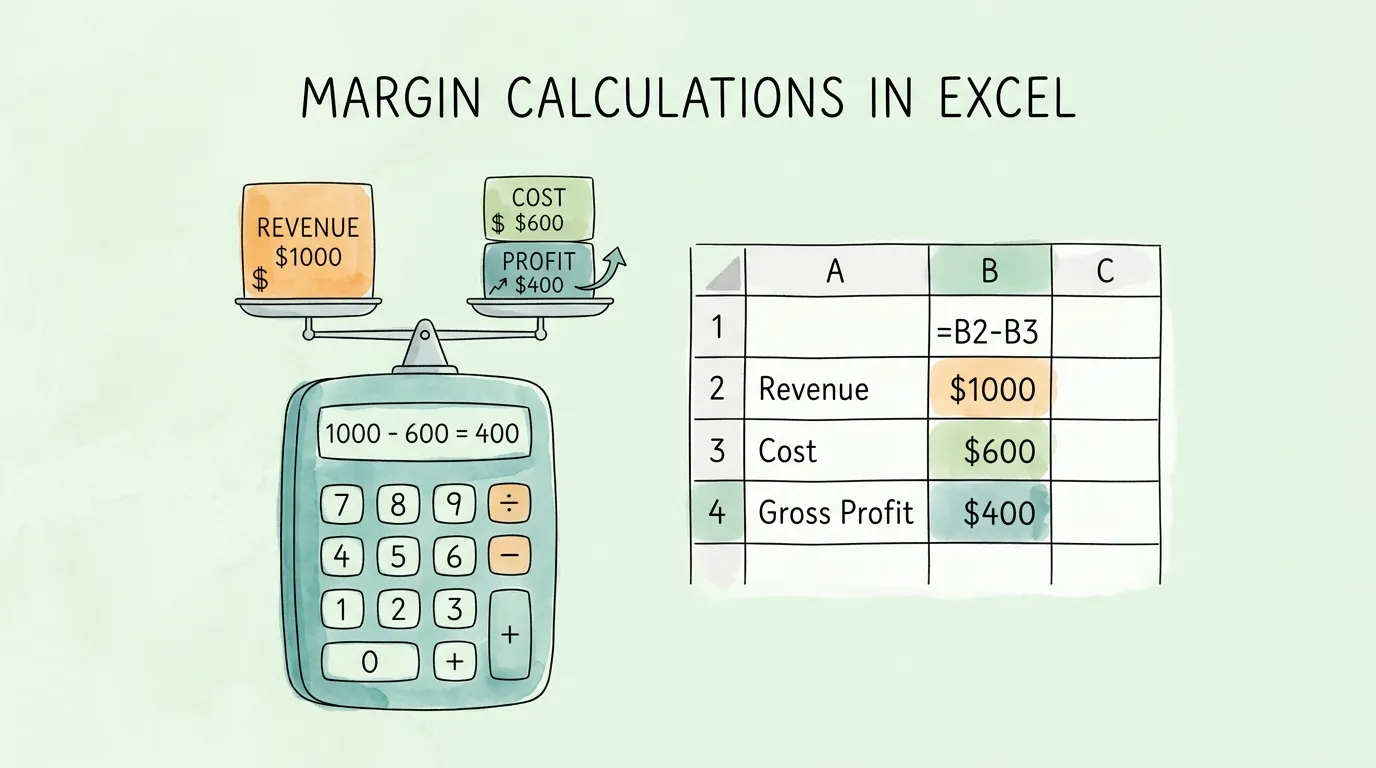
Whether you run a product-based shop, a service business, or manage finances for a growing team, these formulas are not complicated. You don't need an accounting degree. You need a spreadsheet, the right formula, and the clarity to act on what the numbers are telling you. Below, you'll find each calculation broken down step by step, with common mistakes flagged along the way, so your Excel sheet becomes your own personal profit margin calculator.
What Are Margin Calculations in Excel?
At its core, a margin calculation answers one question: of every dollar you bring in, how many cents are actually yours to keep?
The formula is =(Revenue - Cost) / Revenue. That's it. But the power isn't in the formula itself; it's in applying it consistently across every product and service you offer. That's when a spreadsheet stops being a boring list of numbers and starts being the most honest advisor in your business. It will show you that the item you've been promoting for months is barely breaking even, or that your "slow seller" is quietly your most profitable line. This kind of clarity is essential for improving accounts payable efficiency and making smarter decisions about where to put your energy.
Key Margin Terms at a Glance
Before diving in, here is a quick reference table for the core metrics covered in this guide:
| Term |
What It Measures |
Simple Formula |
| Gross Margin |
Product-level profitability, before overhead |
(Revenue - COGS) / Revenue |
| Operating Margin |
Profitability after direct and operating costs |
(Operating Income) / Revenue |
| Net Margin |
Overall business profitability after all expenses |
(Net Income) / Revenue |
| Markup |
How much you increased the price over cost |
(Price - Cost) / Cost |
Which Margin Metric Should You Actually Use?
One of the first hurdles in financial analysis is choosing the right metric. Each margin type answers a different business question.
1. Gross Profit Margin
Gross margin measures the profitability of individual products or services before accounting for overhead like rent, utilities, or marketing. It focuses strictly on the direct costs of production (COGS).
- Best for: Pricing individual items, comparing product performance, and negotiating with suppliers.
- Excel formula:
=(C2-B2)/C2 where C2 = Selling Price, B2 = COGS
2. Operating Profit Margin
Often overlooked, operating margin is the bridge between gross and net. It deducts your operating expenses (salaries, rent, software) but excludes interest and taxes. This is the best measure of your core business efficiency.
- Best for: Identifying whether your overhead costs are eating into profits from well-performing products.
- Excel formula:
=(Revenue - COGS - Operating Expenses) / Revenue
3. Net Profit Margin
Net margin is the "big picture" metric. It tells you how much actual profit the entire business earns after every single expense is paid, including taxes and interest. Keeping a sharp eye on this number is central to any sound small business accounting tips practice.
- Best for: Assessing overall business sustainability and preparing for audit readiness.
- Excel formula:
=(Net Income / Revenue)
|
Gross Margin |
Operating Margin |
Net Margin |
| Scope |
Product Level |
Core Business |
Entire Company |
| Costs Included |
COGS only |
COGS + OpEx |
All Expenses + Tax |
| Primary Use |
Pricing Strategy |
Efficiency Analysis |
Business Sustainability |
What Is Contribution Margin and How Is It Different from Gross Margin?
Contribution margin is one of the most searched and most misunderstood profit concepts in Excel. It answers a specific question: if you sell one more unit, how much of that sale actually contributes toward covering your fixed costs?
Contribution Margin formula: =(Revenue - Variable Costs) / Revenue
The key distinction is what counts as "costs":
- Gross Margin subtracts COGS (direct production costs, both fixed and variable elements like materials and direct labor)
- Contribution Margin subtracts only variable costs (costs that change with each unit sold: materials, packaging, sales commissions, shipping)
|
Gross Margin |
Contribution Margin |
| Costs Deducted |
COGS (direct production costs) |
Variable costs only |
| Best Used For |
Product-level profitability vs. revenue |
Break-even analysis and pricing decisions |
| Fixed Costs Included? |
Sometimes (if absorbed into COGS) |
No — fixed costs are excluded entirely |
| Excel Formula |
=(Price - COGS) / Price |
=(Price - Variable Costs) / Price |
Pro Tip: Use contribution margin when you need to answer "how many units do I need to sell to break even?" It is the right metric for that calculation. Use gross margin when you need to compare product profitability or negotiate with suppliers.
For a deeper dive into variable cost tracking and how it connects to your supplier invoices, our guide on invoice management best practices shows how to keep these cost inputs accurate automatically.
What Is the Difference Between Margin and Markup in Excel?
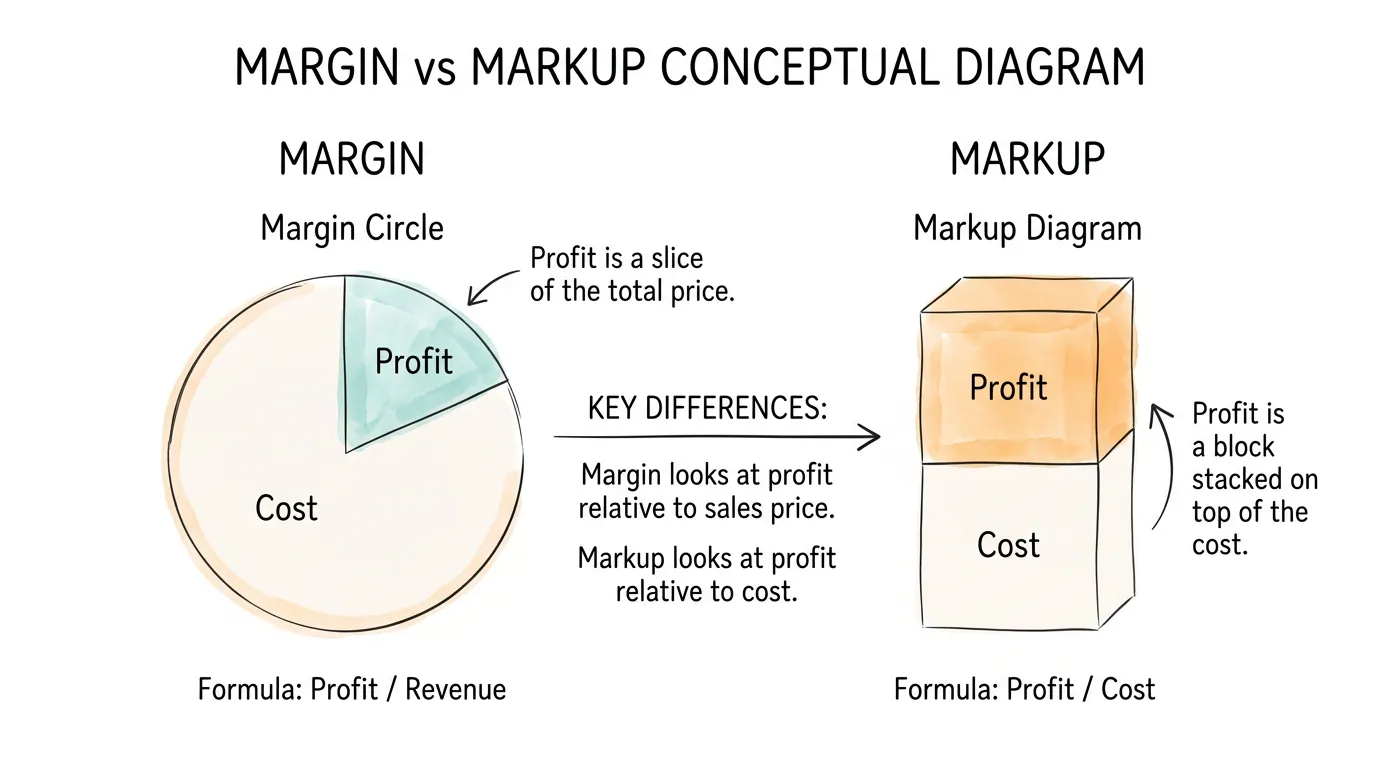
Confusing margin and markup is one of the most common and costly mistakes business owners make. While both use the same variables (Price and Cost), they tell completely different stories.
- Margin is profit as a percentage of the selling price.
- Markup is profit as a percentage of the cost.
The Excel Formula Breakdown
Imagine a product that costs $75 and sells for $100.
- Margin Formula:
=(100-75)/100 = 25%
- Markup Formula:
=(100-75)/75 = 33.3%
If you want a 25% margin but mistakenly apply a 25% markup, you will end up selling the item for $93.75 instead of $100, losing $6.25 in profit on every single sale. At scale, this is a catastrophic error. This is one key reason teams adopt accounting automation software: to remove these manual formula mistakes before they compound.
Margin vs. Markup: Side-by-Side Comparison
| Metric |
Excel Formula |
Denominator |
Example (Cost $75, Price $100) |
| Margin |
=(Price - Cost) / Price |
Selling Price |
25% |
| Markup |
=(Price - Cost) / Cost |
Cost |
33.3% |
Rule of Thumb: Use markup to set a price. Use margin to analyze profitability. They are not interchangeable.
How Do You Calculate Gross Profit Margin in Excel, Step by Step?
Let's build a practical margin tracker from scratch.
Step 1: Organize Your Data
Create a clean spreadsheet with four columns:
- Product Name (Column A)
- Cost of Goods Sold / COGS (Column B)
- Selling Price (Column C)
- Gross Margin % (Column D)
Clean data is the foundation. Do not mix operating expenses (salaries, rent) into your COGS column, as that will give you a distorted, unreliable picture.
Step 2: Input the Gross Margin Formula
In cell D2, type:
=(C2-B2)/C2
This finds the profit (Price minus Cost), then divides by the Price to express it as a margin percentage.
Step 3: Format and Fill Down
- Select cell D2 and click the % button on the Home tab.
- Hover over the bottom-right corner of D2 until you see the Fill Handle (a small green cross).
- Double-click it to auto-fill the formula down the entire column.
Pro Tip for Variable Costs: If you buy the same product from multiple suppliers at different prices, use a weighted average cost formula rather than the most recent price. This prevents your margins from looking artificially high or low based on a single outlier purchase. You can automate the collection of these cost documents using invoice scanning software.
Which Excel Features Make Margin Analysis More Powerful?
Once your basic formulas are in place, these Excel features will transform your data into a genuine decision-making engine.
1. Conditional Formatting: Instant Visual Flags
Use Conditional Formatting to highlight margin danger zones automatically. Set rules to:
- Color cells red for any margin below 15% (danger zone)
- Color cells yellow for margins between 15% and 25% (watch list)
- Color cells green for anything above 25% (healthy)
This transforms a dense table into an at-a-glance health check.
2. PivotTables: Spot Category-Level Trends
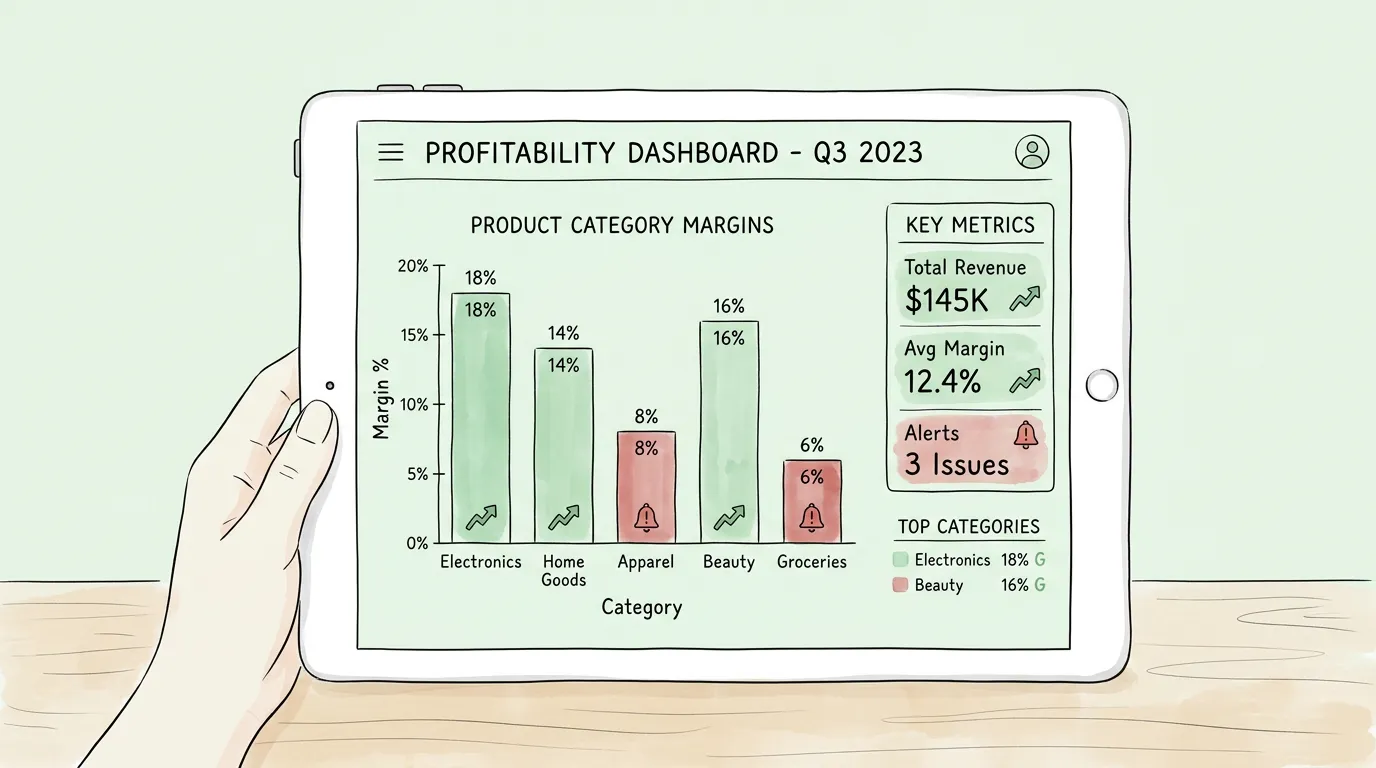
Use a PivotTable to roll up individual product margins by category. This answers questions like:
- Which product category generates the highest average margin?
- Has my margin for "Electronics" been declining over the last 3 quarters?
- Which supplier is consistently driving the lowest COGS for my top products?
These are the insights you simply cannot find by scanning rows of raw data.
3. Goal Seek: Work Backwards from a Target Margin
Need to know what selling price achieves a 30% margin, given a fixed cost? Use Data → What-If Analysis → Goal Seek. Set the Margin cell to 0.30 by changing the Selling Price cell. Excel will calculate the exact price you need to charge.
4. IF Formulas for Automated Flags
Add a commentary column with a simple formula:
=IF(D2<0.15,"⚠ Review Pricing", IF(D2<0.25,"Watch", "✓ Healthy"))
This gives every product a written status label next to its margin percentage, perfect for sharing dashboards with non-finance stakeholders.
What Is Considered a Good Profit Margin by Industry?
While "good" varies by industry and business model, here are widely cited targets:
| Industry |
Gross Margin Target |
Net Margin Target |
| Retail (General) |
20% – 35% |
3% – 6% |
| SaaS / Software |
70% – 90% |
20%+ |
| Consulting / Services |
50% – 70% |
15% – 30% |
| Manufacturing |
25% – 40% |
5% – 10% |
| Food & Beverage |
60% – 70% |
3% – 9% |
According to Wikipedia's analysis of gross margin, these figures can shift significantly based on market competition and supply chain pressures. For a more granular breakdown, NYU Stern's industry-level margin data is an excellent free resource.
Consistently tracking your numbers against these benchmarks is what separates reactive businesses from strategic ones.
What Are the Most Common Margin Calculation Mistakes?
Even experienced analysts make these errors. Be aware of them:
- Mixing COGS and OpEx: Your Cost of Goods Sold should only include direct production costs: materials, direct labor. Including rent or admin salaries inflates your apparent COGS and shrinks your gross margin artificially.
- Using Gross Revenue Instead of Net Revenue: Returns, refunds, and discounts must be subtracted before you calculate margins. Always start from net revenue to get an honest picture.
- Ignoring Negative Margins: A negative gross margin means you are losing money on every sale at the unit level. No volume of sales will fix this; you must either raise prices or cut costs immediately.
- Treating Margins as Static: Margins change with supplier costs, exchange rates, and shipping fees. A monthly review cycle is the minimum. Integrating your data flow with bookkeeping AI tools can automate this monitoring.
How Do You Build a Margin Review Process That Actually Sticks?
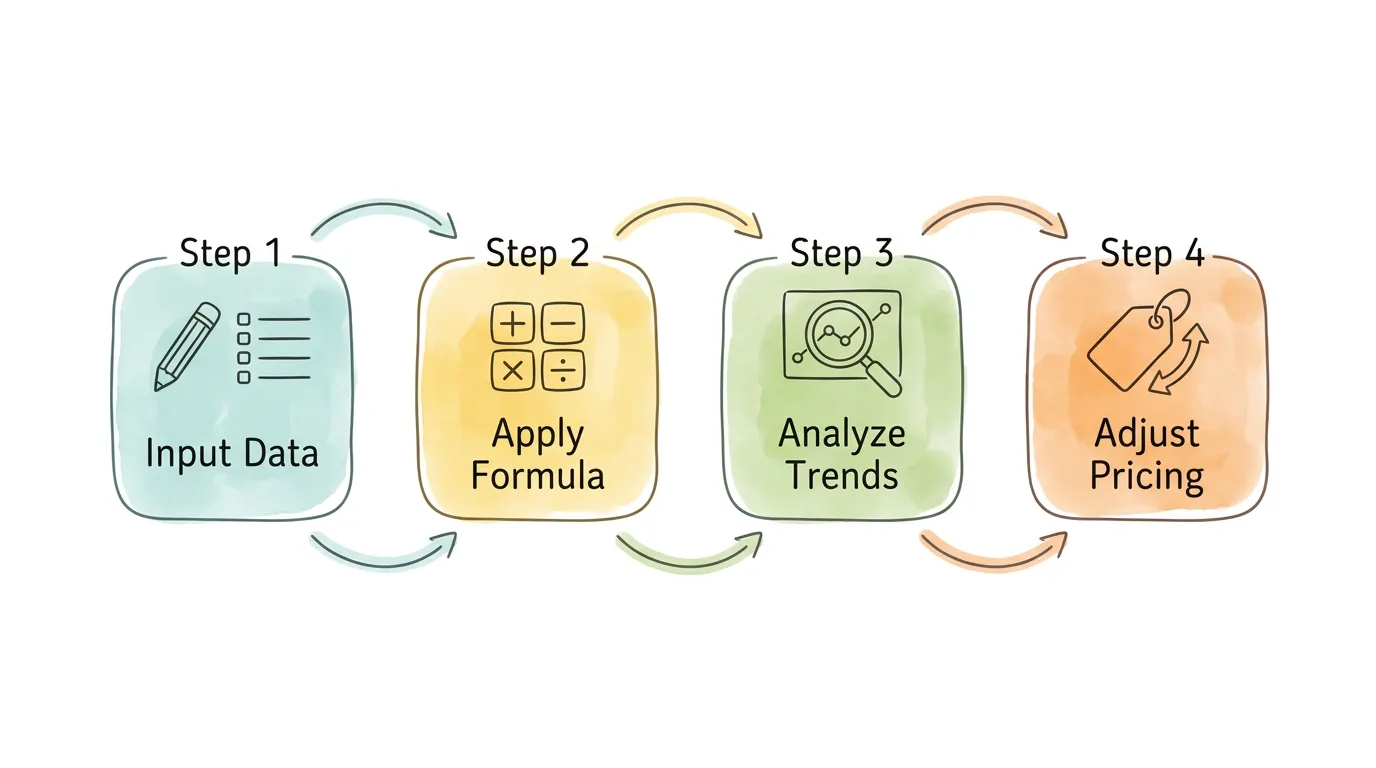
- Centralize Financial Data: Pull all cost and revenue figures into one clean sheet. Tools like Tailride automate the extraction of cost data from supplier invoices directly.
- Standardize Formulas Across Your Team: Agree on one definition of margin vs. markup and document it. Inconsistency here causes misleading reporting.
- Review Monthly, Act Quarterly: Margins fluctuate. Use monthly reviews to spot trends and quarterly reviews to make structural pricing adjustments.
- Build a Living Dashboard: Combine your formulas with charts and conditional formatting to create a report that updates automatically as you add data. Pair this with your accounting workflow management process for a fully integrated financial system.
Frequently Asked Questions
How do I calculate a 20% profit margin in Excel?
If your cost is $80 and you want a 20% gross margin, use this formula to calculate the required selling price: =80 / (1 - 0.20). The result is $100, meaning a $20 profit on a $100 sale equals a 20% margin.
What is the Excel formula for gross profit margin?
The standard formula is =(Selling Price - COGS) / Selling Price. In a typical spreadsheet where Column B is COGS and Column C is Selling Price, it would read =(C2-B2)/C2.
Why is my margin formula in Excel showing zero?
The most common cause is cell formatting. If cell D2 is formatted as "Number" with zero decimal places, a result of 0.25 will display as 0. Select the cell, click the "%" button on the Home ribbon, and it will correctly show as 25%.
How are returns and discounts handled in margin calculations?
Returns and discounts must be subtracted from Gross Revenue to arrive at Net Revenue. Always use Net Revenue as the denominator in your margin formula. Using inflated gross figures creates a false sense of profitability. Solid reconciliation practices (covered in our balance sheet reconciliation checklist) will keep these figures accurate.
Is markup always a higher percentage than margin?
Yes, always. Because markup divides by the lower number (Cost) and margin divides by the higher number (Selling Price), the markup percentage will always exceed the margin percentage for the same product.
What is a good gross margin for a small business?
This depends heavily on the industry. As a general starting point, a gross margin above 40% is considered solid for most small businesses, but service businesses often target 60%+. Benchmark your margins against your specific sector using authoritative sources like NYU Stern's industry data.
What is the difference between gross profit and gross margin?
These two terms are related but measure different things. Gross profit is a dollar amount: Revenue - COGS. Gross margin is that same number expressed as a percentage of revenue: (Revenue - COGS) / Revenue. For example, if you sell a product for $100 and it cost $60 to produce, your gross profit is $40 and your gross margin is 40%. Gross margin is more useful for comparison across products or periods because it normalizes for scale.
How often should you review your margins in Excel?
Most small businesses benefit from a monthly review of gross margins by product or service line, which catches rising supplier costs or shipping fee increases before they compound. A quarterly review of operating and net margins gives you a fuller picture for pricing strategy and budget decisions. If you sell seasonal products or experience frequent supplier price changes, a weekly spot-check on your top-selling SKUs is worth adding. Automating cost data collection with bookkeeping AI tools means your spreadsheet is always current without manual data entry.
Your margins don't lie. Revenue can flatter you; margin cuts through the noise. Once you have a working profitability model in Excel, the conversation inside your business changes: product decisions get sharper, pricing conversations stop being guesswork, and you can actually see which part of the business is carrying everything else. If you're spending more time chasing cost data from supplier invoices than reading the model itself, learn how TallyScan automates invoice data extraction so your spreadsheets are always working from accurate, up-to-date numbers.