Most businesses shopping for invoice scanning software start the same way: they search for a list, pick a tool that sounds reasonable, buy it, and then spend six months wondering why the time savings never materialized. The product did what it said. The problem was a mismatch between what they bought and what they actually needed.
There are five meaningfully different categories of invoice scanning software. They solve different problems, work for different business sizes, and fail in different ways when used outside their intended context. This guide explains how invoice scanning software actually works under the hood, maps those five categories to the right use cases, gives an honest comparison of the leading platforms, and provides a decision framework that helps you choose based on your specific situation rather than a feature checklist.
What Is Invoice Scanning Software?
Invoice scanning software is a category of tools that converts invoice documents from any format (paper, PDF, image, email body, XML) into structured, machine-readable data, and then routes that data into your accounting or ERP system. The core function is eliminating manual data entry: instead of a human reading an invoice and typing the numbers into QuickBooks, the software reads the document and enters the data automatically.
Modern invoice scanning software does more than simple digitization. Platforms in this category typically:
Capture invoices from multiple sources: email inboxes, vendor portals, mobile cameras, desktop scanners, file uploads
Extract key fields using OCR and AI: vendor name, invoice number, date, due date, line items, tax amounts, PO numbers
Validate extracted data against purchase orders, contracts, or approval thresholds
Route invoices for human review and approval based on configurable rules
Export or sync approved data to your accounting platform in real time
The combination of these steps is what makes invoice scanning software valuable. OCR alone (the technology that reads text from images) has existed for decades. What changed is the AI layer on top that understands context, handles variability across vendor formats, and learns from corrections over time. For a deeper explanation of how the underlying technology works, see our guide on what is OCR technology.
How Does Invoice Scanning Software Actually Work?
Understanding the mechanics helps you evaluate which tools genuinely deliver on their claims.
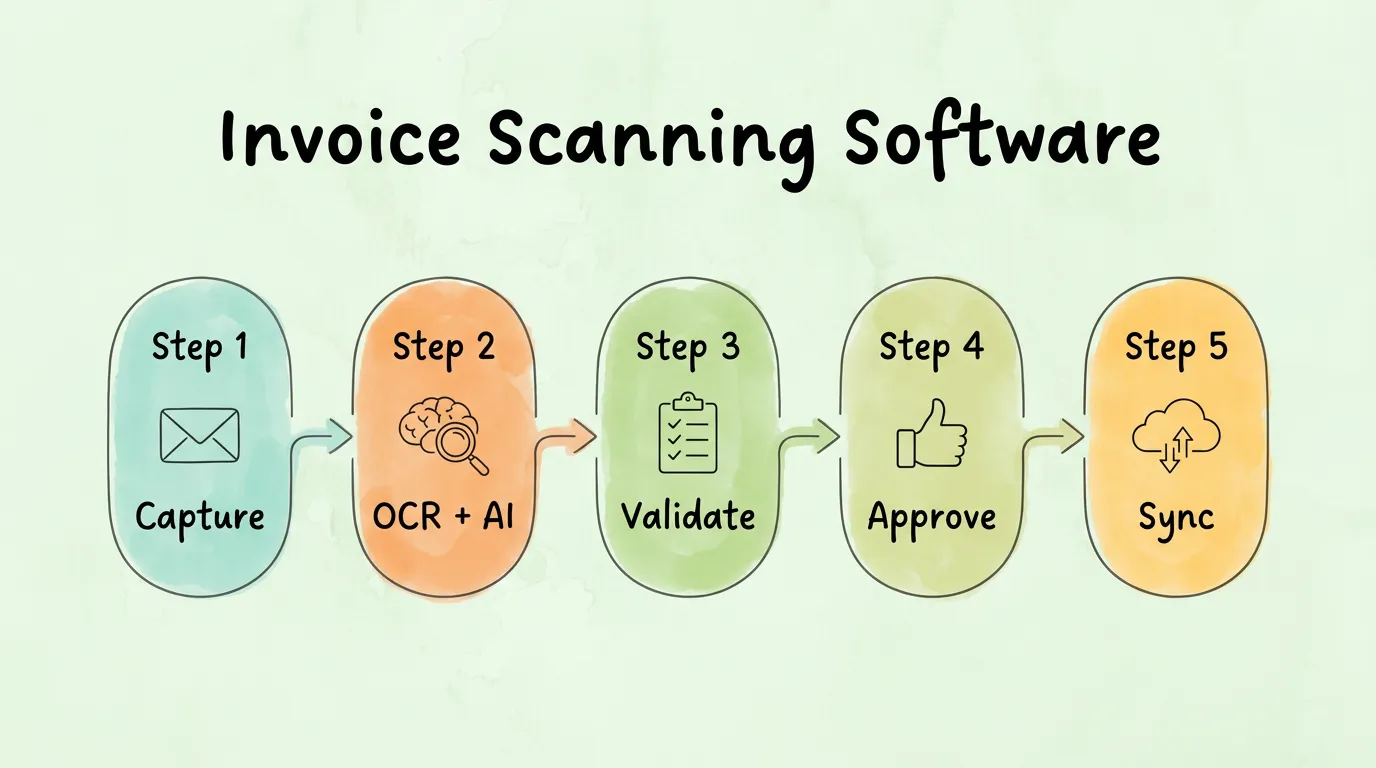
Step 1: Capture (Getting the Invoice Into the System)
Invoices arrive through multiple channels, and good capture tools handle all of them without manual intervention:
Email monitoring: the software watches a designated inbox (or multiple inboxes) and automatically detects new invoice attachments or embedded invoice content the moment they arrive
Vendor portal scraping: a Chrome extension or automated connector logs into supplier portals (Amazon Business, Meta Ads, utility providers) and downloads invoices directly
Mobile receipt capture: employees photograph paper invoices or receipts with a phone app; the image is immediately uploaded for processing
Desktop scanner integration: TWAIN or WIA-compatible hardware scanners send scanned documents directly to the software
File upload: manual batch upload of PDFs or image files via drag-and-drop or API
The breadth and reliability of capture channels is the first meaningful differentiator between tools. A system that only handles email PDFs will miss paper invoices, portal downloads, and employee expenses.
Step 2: OCR + AI Extraction
Once captured, the document goes through two layers of processing:
OCR (Optical Character Recognition) converts the visual content of an image or PDF into text. Traditional OCR is pixel-based: it maps shapes to characters using pattern recognition. The output is raw text, which still needs to be interpreted to understand which number is the invoice total vs. the tax amount vs. the PO number.
AI extraction applies machine learning models trained on millions of invoices to interpret the raw OCR text in context. This is where the real intelligence sits. An AI extraction model understands that "Amount Due," "Balance Owing," "Total Payable," and "Net Amount" all refer to the same field. It can read a structured table of line items and map each row to the correct fields. It recognizes vendor names even with slight spelling variations, matches them to vendors already in your system, and suggests the correct GL code based on past transactions.
The practical difference: traditional template-based OCR breaks when a new vendor sends an invoice with an unfamiliar layout. AI extraction adapts, reads the new layout correctly, and improves its confidence on that layout with every subsequent invoice from that vendor. For a detailed breakdown of how AI takes this further, see AI invoice extraction and automation.
Step 3: Validation and Matching
Extracted data is checked against business rules before proceeding:
Two-way matching: invoice amount matches the approved purchase order
Three-way matching: invoice matches both the PO and the goods receipt (confirming the goods were actually received)
Duplicate detection: same invoice number and vendor seen before flags for review
Policy enforcement: expense categories, vendor approvals, or amount thresholds checked against configured rules
Tax validation: VAT or sales tax amounts verified for compliance
Exceptions (anything that fails validation) are flagged and routed for human review. Everything that passes validation moves forward automatically.
Step 4: Approval Routing
Validated invoices are sent to the appropriate approver based on rules you configure:
Invoices under $500 auto-approve
Invoices $500-$5,000 route to the department manager
Invoices over $5,000 require CFO approval
Invoices from new vendors require an additional compliance check
Approvers receive a notification, review the invoice in the platform or via email, and approve or reject with a comment. The approval action is logged with a timestamp for audit purposes. For a complete guide to designing approval workflows, see invoice approval process.
Step 5: Export and Sync
Approved invoice data is pushed to your accounting system: QuickBooks, Xero, Sage, NetSuite, or any platform your software integrates with natively. The sync is typically bidirectional: when the invoice is marked as paid in your accounting system, that status reflects back in the scanning tool. This closes the loop and enables accurate reporting of outstanding payables without manual reconciliation.
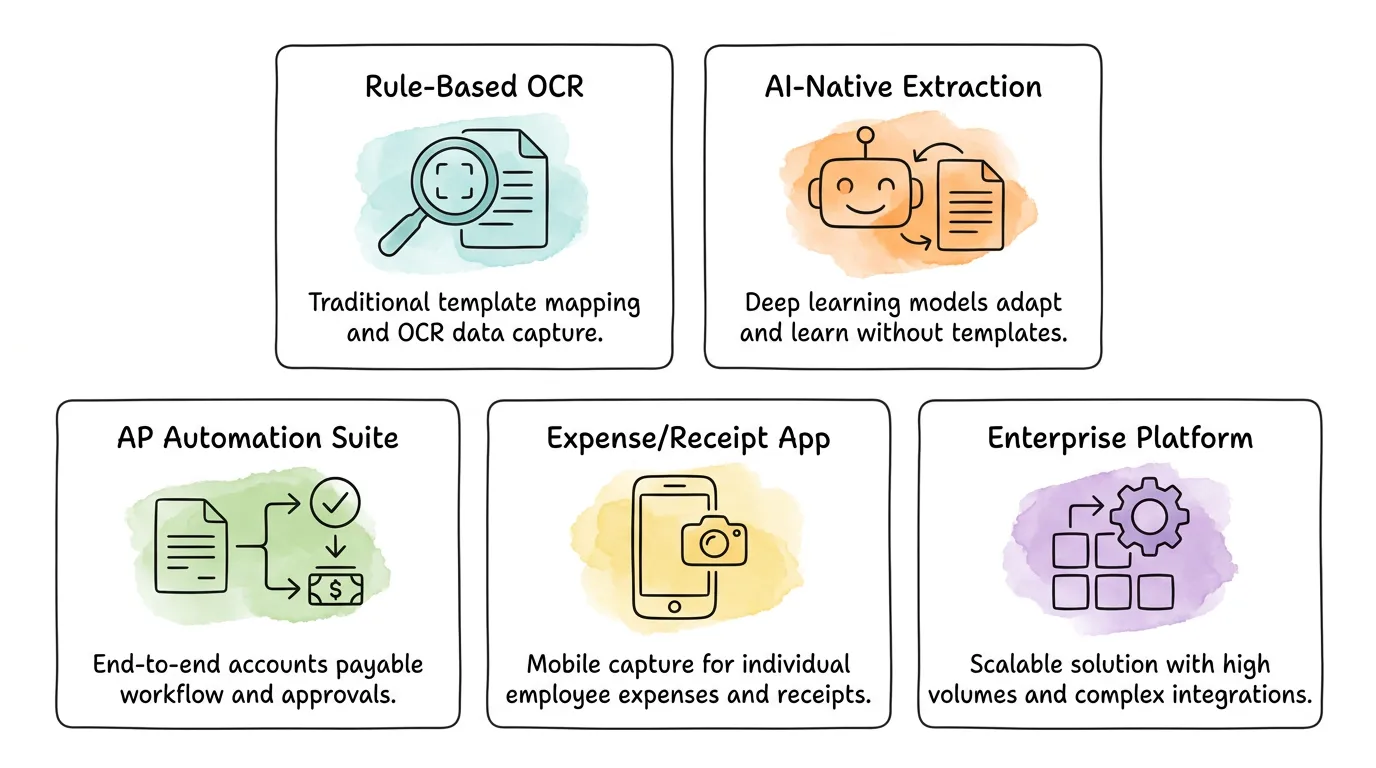
What Are the Five Types of Invoice Scanning Software?
Not every tool in this category does all five steps. Understanding the five types prevents buying the wrong tool for your workflow.
Type 1: Rule-Based OCR Tools
What they do: Use template mapping to extract data from documents. You define zones (e.g., "invoice total is always in the bottom-right corner of this vendor's invoices") and the tool extracts from those zones.
Best for: Businesses receiving invoices from a small, fixed set of vendors whose document formats never change.
Limitation: Break immediately when a vendor changes their invoice layout or a new vendor is added. Require manual template creation for every new document format.
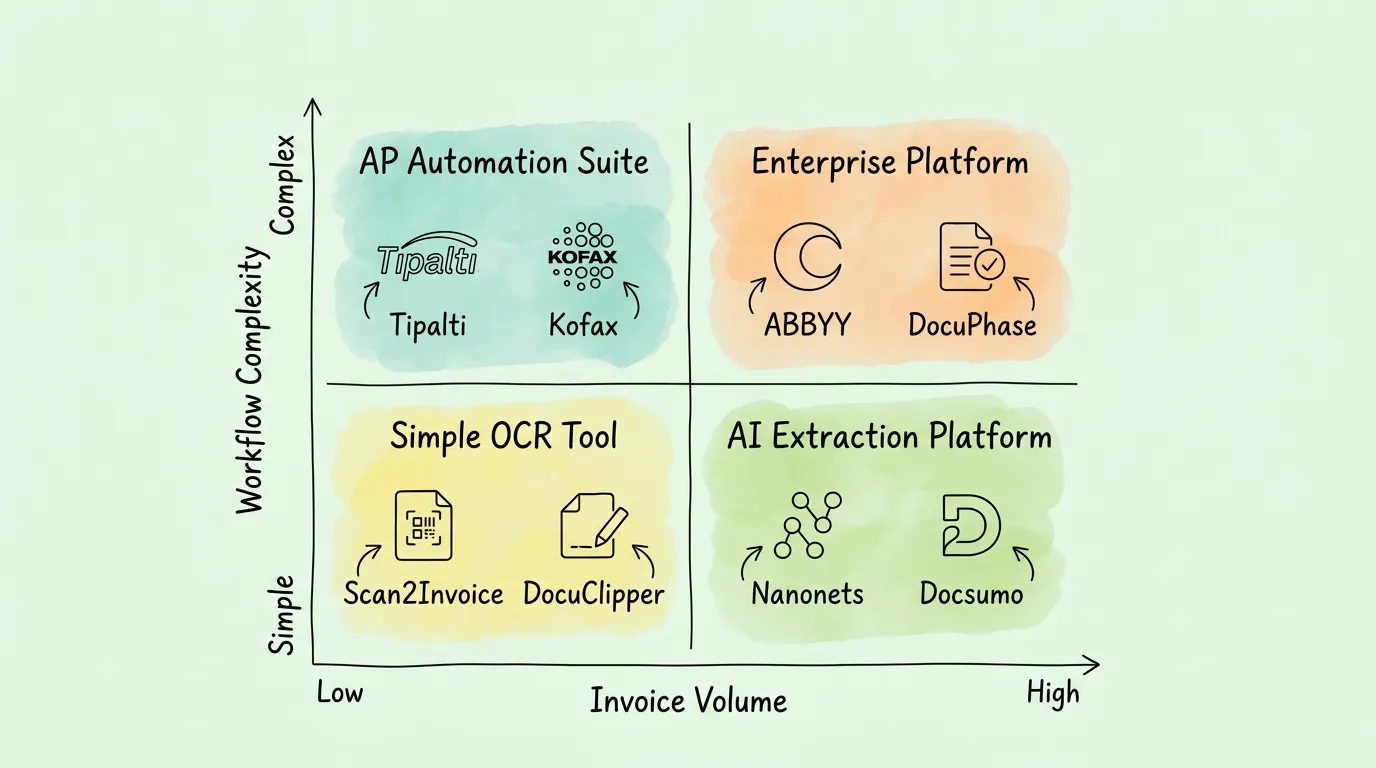
Examples: DocParser, older versions of most OCR-based tools.
Type 2: AI-Native Extraction Platforms
What they do: Use machine learning to read any invoice layout without templates. The AI model adapts to new formats automatically and improves accuracy over time as it sees more documents.
Best for: Businesses with high invoice volumes from many different vendors, or anyone who has been burned by template-based OCR failing on new formats.
Limitation: Higher setup cost and often usage-based pricing that scales with volume.
Examples: Nanonets, Docsumo, ABBYY Vantage.
Type 3: AP Automation Suites with Scanning
What they do: Combine invoice scanning with a full accounts payable workflow: vendor onboarding, PO matching, multi-level approval routing, payment scheduling, and compliance management.
Best for: Mid-market businesses that need to automate the entire AP cycle, not just data capture.
Limitation: Expensive and complex for businesses that only need data extraction. The full feature set requires implementation effort and team training.
Examples: Tipalti, DocuPhase, SAP Concur.
Type 4: Expense and Receipt Scanning Apps
What they do: Focus on mobile capture of employee receipts and expenses. Employees photograph receipts; the app extracts data, categorizes the expense, and routes it through a mobile-first approval flow.
Best for: Businesses where employee T&E expense management is the primary pain point. Works alongside a separate AP tool for vendor invoices.
Limitation: Not designed for high-volume AP workflows or complex multi-line vendor invoices.
Examples: Dext Prepare, Expensify, Ramp.
Type 5: Enterprise Document Processing Platforms
What they do: Handle invoice scanning as one component of a broader document automation strategy covering contracts, compliance documents, and other financial content. Built for complex integrations with legacy ERPs.
Best for: Large enterprises with diverse document types, strict compliance requirements, and existing ERP infrastructure that new tools must connect to.
Limitation: High cost, long implementation timelines, and significant IT involvement required.
Which Invoice Scanning Features Actually Matter When Evaluating Tools?
Most feature lists look the same. These are the capabilities that genuinely differentiate high-performing tools from average ones.
Multi-Source Capture vs. Single-Channel
Basic tools accept one input method (usually file upload). Better tools handle email monitoring, portal connectors, mobile apps, and desktop scanners from a single platform. If your invoices arrive through five different channels and your tool only handles two, you have manual work remaining by definition.
Extraction Accuracy on Unstructured Invoices
Ask vendors for accuracy metrics on invoices from vendors they have never seen before (zero-shot accuracy), not just their headline number from a curated test set. Good AI-native tools achieve 90-95% accuracy on new vendor formats. Template-based tools may claim 99% accuracy but that is only on the formats they have already been trained on.
Line-Item Extraction
Basic invoice scanning captures the header fields: vendor, total, date. Line-item extraction captures each individual product or service line: description, quantity, unit price, line total. If you need this for PO matching or spend analysis, confirm the tool handles it before committing. Many cheap tools do not.
Approval Workflow Configurability
Some tools offer a single-level approval. Others support multi-level hierarchies, conditional routing (different approvers for different vendors or amounts), escalation rules for overdue approvals, and delegation when approvers are out of office. Understand your approval requirements before evaluating this feature.
Accounting Platform Integration Depth
"Integrates with QuickBooks" means different things across tools. Ask specifically: is this a native API integration or a Zapier connector? Does data flow bidirectionally? Are there field-mapping limitations? Can custom GL codes be mapped? Does the integration sync payment status back into the scanning tool? A shallow integration creates manual reconciliation work. For a guide on what good integration looks like in practice, see accounting software integration.
Audit Trail Completeness
Every extraction action, validation result, approval decision, and sync event should be logged with a timestamp and user attribution. This is non-negotiable for any business subject to audit. According to the Institute of Finance and Management (IOFM), best-in-class AP departments maintain complete audit trails for 100% of invoices processed. Ask to see a sample audit log before purchasing.
How Do the 10 Leading Invoice Scanning Tools Compare?
Tool
Type
Best For
Free Plan
Starting Price
Key Integrations
Notable Limitation
TallyScan
AI-native + AP automation
SMB to mid-market, email-heavy AP
Yes (10 invoices/mo)
~$19/mo
QuickBooks, Xero, Google Drive
Volume caps on lower tiers
Scan2Invoice
Desktop OCR bridge
Small teams, paper invoices
No
$49 one-time
QuickBooks Online, Xero
Requires physical desktop scanner; no portal capture
Tipalti
AP automation suite
Mid-market global payments
No
Custom quote
NetSuite, QuickBooks, Sage Intacct
High cost and complexity for small businesses
Kofax
Enterprise platform
Large enterprise, legacy ERP
No
Custom quote
SAP, Oracle, major ERPs
Steep implementation curve; IT resources required
ABBYY Vantage
AI-native extraction engine
High-volume, multi-language
No
Custom quote
Any via API; 200+ languages
Developer-level setup needed; not plug-and-play
DocParser
Rule-based OCR
Customizable line-item extraction
Yes (limited)
$39/mo (100 docs)
Zapier, Power Automate, webhooks
Template setup required for each new vendor format
Docsumo
AI-native extraction
Unstructured invoices, diverse formats
Trial only
Custom
QuickBooks, Xero, ERP via API
Custom pricing; complex initial setup
DocuClipper
Batch OCR extractor
Bookkeepers, batch file conversion
Trial only
~$29/mo (200 pages)
QuickBooks, Xero, Excel/CSV export
No approval workflow; extraction only
Nanonets
AI-native + workflow
Complex layouts, custom approval workflows
Trial only
$499/mo (5,000 pages/yr)
QuickBooks, Salesforce, API
High price point; technical configuration needed
Dext Prepare
Receipt/expense app
Accountants, mobile T&E capture
No
~$30/mo
Xero, QuickBooks, Sage, MYOB
Weak multi-level approval for vendor invoices
Quick-Reference: Which Tool for Which Situation
Situation
Recommended Tool Type
Why
Freelancer, under 20 invoices/month
Simple cloud accounting with built-in OCR
Full platforms are overkill; native receipt scanning in Wave or FreshBooks is sufficient
Small business, email PDF invoices, 50-500/month
AI-native extraction with email monitoring (TallyScan)
High extraction accuracy, no template setup, direct accounting sync
Many paper invoices, small team
Desktop OCR bridge (Scan2Invoice) or mobile app (Dext)
Direct physical scanner integration or mobile capture
Mid-market, need PO matching and multi-level approvals
AP automation suite (Tipalti, DocuPhase)
Full AP lifecycle automation justifies the cost at this scale
Invoices from 50+ vendor formats, frequent new vendors
AI-native extraction (Nanonets, Docsumo)
Template-free AI adapts to any layout; scales with vendor diversity
Enterprise, SAP/Oracle integration required
Enterprise platform (Kofax, ABBYY)
Deep ERP integration and compliance controls built for this environment
Employee T&E expense management
Receipt app (Dext Prepare, Expensify)
Mobile-first design matches how employees actually capture receipts
How Do You Choose Invoice Scanning Software for Your Business Size?
Freelancers and Sole Traders
At this scale, dedicated invoice scanning software is usually unnecessary. The built-in receipt scanning in Wave (free), FreshBooks, or QuickBooks Self-Employed handles typical volumes. Invest in a dedicated tool when manual entry starts taking more than two hours per week.
Small Businesses (2-20 employees, 50-500 invoices/month)
This is where dedicated invoice scanning software pays off clearly. Your priority criteria: automatic email monitoring (so invoices are captured without anyone downloading them), strong QuickBooks or Xero integration, and mobile receipt capture for expenses. Budget $20-80/month. Start with a platform that offers a free trial so you can test accuracy on your actual invoices before committing.
Key question to answer first: what percentage of your invoices arrive by email vs. paper vs. vendor portal? If most arrive by email as PDFs, an AI-native email monitoring tool is the most impactful choice. If you have significant paper volume, confirm the tool integrates with your desktop scanner or supports mobile capture as a substitute.
At this scale, the cost of manual errors, missed early payment discounts, and slow approval cycles justifies more investment in workflow automation beyond pure scanning. You need configurable multi-level approval routing, PO matching for your procurement workflows, solid ERP integration, and detailed audit trails. Budget $200-$1,000+/month. Include your finance manager, IT lead, and a representative AP team member in the evaluation process.
Enterprise selection requires a formal RFP process. Key requirements: dedicated implementation support, custom SLA agreements, SOX compliance controls, multi-entity and multi-currency support, native ERP integration (not middleware), and security certifications (SOC 2 Type II at minimum). Expect implementation timelines of three to six months and total cost of ownership that includes setup, training, and ongoing support. For a full framework covering the broader AP automation context, see our guide on accounts payable automation benefits.
Which Features Do Most Buyers Overlook Until It's Too Late?
Experience with businesses that have switched tools after a disappointing first implementation reveals the same pattern: the features that drove the purchase decision (headline accuracy numbers, a clean UI, integration logos on the website) were rarely the cause of failure. These were:
Handling new vendor formats without manual intervention. A tool that processes your existing vendors perfectly may fail immediately when a new supplier is added. Test with invoices from five vendors the tool has never seen before.
Sync reliability over time. Many integrations work in demos and break under real load or after a software update. Ask specifically about integration uptime SLAs and what happens when a sync fails.
Exception handling volume. Every tool has an exception rate (invoices it cannot process automatically). At 2% exceptions on 500 invoices per month, that is 10 manual interventions. At 10%, that is 50. Understand the exception rate on your document types before buying, not after.
The real cost of line-item extraction. Many tools charge per page, and invoices with line items are multi-page. A tool that looks affordable at $0.10 per document may cost five times more for a 20-line PO-backed invoice.
How Do You Identify Which Invoice Scanning Capabilities You Actually Need?
Before evaluating any tool, complete this scorecard to clarify your requirements. Score each row 1 (low) to 3 (high) for both your current pain level and automation potential.
Area
Current Pain (1-3)
Automation Potential (1-3)
Priority Score
Manual email invoice download
Data entry from PDFs into accounting software
Paper invoice handling and digitization
Vendor portal invoice retrieval
Employee expense receipt collection
Invoice approval routing and tracking
PO matching and three-way matching
Month-end reconciliation and GL coding
Audit trail and document retrieval
New vendor onboarding and format handling
Scoring guide: Multiply Pain × Automation Potential for each row. The rows with the highest combined score (6-9) are your priority requirements. A tool that excels in your top three priority areas will deliver more value than a tool with the longest overall feature list.
What Are the Most Common Invoice Scanning Implementation Mistakes?
Buying for current volume, ignoring growth. If your invoice volume doubles in 18 months, will the tool still be the right fit and affordable? Check per-document pricing at 2x and 5x your current volume before committing.
Not testing with real documents. Vendor demos use curated, clean documents. Bring your own sample invoices: ideally a mix of clean PDFs, scanned paper documents, and at least two invoices from vendors you have never processed before. The real accuracy number on your documents is the only number that matters.
Skipping the integration test. Before final purchase, run the full flow end to end: invoice in → extracted → approved → synced to accounting software → check that the GL codes, vendor mapping, and amounts are correct in your accounting system. Many integration issues only surface when real data flows through.
Underestimating adoption time. The tool processes invoices automatically, but humans still need to review exceptions, approve invoices, and adjust GL codes when the AI gets it wrong. Plan for two to four weeks of parallel running (using both the old process and the new tool simultaneously) to identify edge cases before fully switching over.
For a practical guide to improving the broader accounts payable operation around your scanning tool, see improve accounts payable efficiency.
Frequently Asked Questions
What is the difference between invoice scanning software and invoice automation software?
Invoice scanning software specifically refers to the process of capturing and extracting data from invoice documents: converting a PDF, image, or paper document into structured data your accounting system can use. Invoice automation software is a broader term that includes scanning but also covers the workflow steps downstream: routing invoices for approval, matching to purchase orders, scheduling payments, and syncing to accounting systems. Many modern platforms do both, but some specialized tools focus only on the data extraction layer. For a comparison of the full automation category, see our guide on invoice automation software.
How accurate is invoice scanning software in practice?
Accuracy varies significantly between tools and document types. For clean digital PDFs from known vendors, modern AI-native tools achieve 95-99% field-level accuracy. For scanned paper documents, accuracy typically drops to 85-95% depending on print quality and layout complexity. For invoices in languages other than English, accuracy depends on whether the model was specifically trained on that language. The most important number is accuracy on your documents, not vendor-quoted headline figures. Always test with your own invoice samples.
Can invoice scanning software handle paper invoices?
Yes, though the method differs by tool type. Desktop OCR bridge tools (like Scan2Invoice) connect directly to a physical desktop scanner. Mobile capture apps allow employees to photograph paper invoices with their phone camera. Some AI-native platforms accept scanned image uploads in bulk. If paper invoices are a significant part of your volume, confirm the tool supports your preferred digitization method before purchasing. Mobile capture with a modern phone camera typically produces sufficient image quality for accurate AI extraction.
Does invoice scanning software work with languages other than English?
It depends on the tool. Most tools marketed to English-speaking markets support English, Spanish, French, German, and Portuguese well. ABBYY is the benchmark for multilingual support at 200+ languages. If you work with vendors in less common languages or scripts (Japanese, Arabic, Thai), test extraction accuracy specifically for those languages and ask vendors to provide accuracy data for your specific language requirements.
How long does it take to set up invoice scanning software?
For cloud-based AI-native tools targeting small and mid-size businesses, basic setup (connecting your email inbox, mapping to your accounting system, and processing first invoices) typically takes two to four hours. Template-based OCR tools require additional time to build and test templates for each vendor format. Enterprise platforms with ERP integration typically require four to twelve weeks of implementation, including data migration, workflow configuration, and user training. The time investment is directly correlated with the sophistication of the workflow you are building.
Will invoice scanning software eliminate the need for an accounts payable team?
No. Invoice scanning software eliminates manual data entry, which is typically 40-60% of AP team time. The remaining work (vendor relationship management, exception handling, policy decisions, supplier onboarding, and financial analysis) still requires human judgment. What changes is the composition of work: AP staff spend less time on data entry and more time on the higher-value activities that improve vendor relationships and financial visibility. For a broader perspective on how automation changes the AP function, see accounts payable automation best practices.
What happens to invoices the software cannot read correctly?
Every invoice scanning platform has an exception handling workflow. Documents that fall below a confidence threshold, fail validation rules, or cannot be matched to a PO are flagged and routed for manual review. A well-configured system shows the extracted data alongside the original document, letting the reviewer correct specific fields rather than re-entering everything from scratch. The corrected data feeds back into the AI model, improving accuracy on similar documents in the future. Understand the exception handling UX before buying. Some tools make exception review easy, others make it painful.
What Does Choosing the Right Tool Actually Look Like in Practice?
The businesses that get the most from invoice scanning software are not the ones that bought the most sophisticated tool. They are the ones who correctly diagnosed their highest-volume pain point, chose a tool well-matched to that specific problem, ran a proper test with their real documents before committing, and implemented with a clear 90-day plan.
The decision matrix comes down to three questions: How many invoices do you process per month? How many different vendor formats do you deal with? How much workflow automation (beyond data extraction) do you need? The answers point directly to the right tool category.
TallyScan captures invoices automatically from your email inbox and vendor portals, extracts every key field with AI-powered OCR, and syncs approved data directly to QuickBooks, Xero, and the accounting platforms your team already uses. No templates to build, no manual downloads, no data entry.